
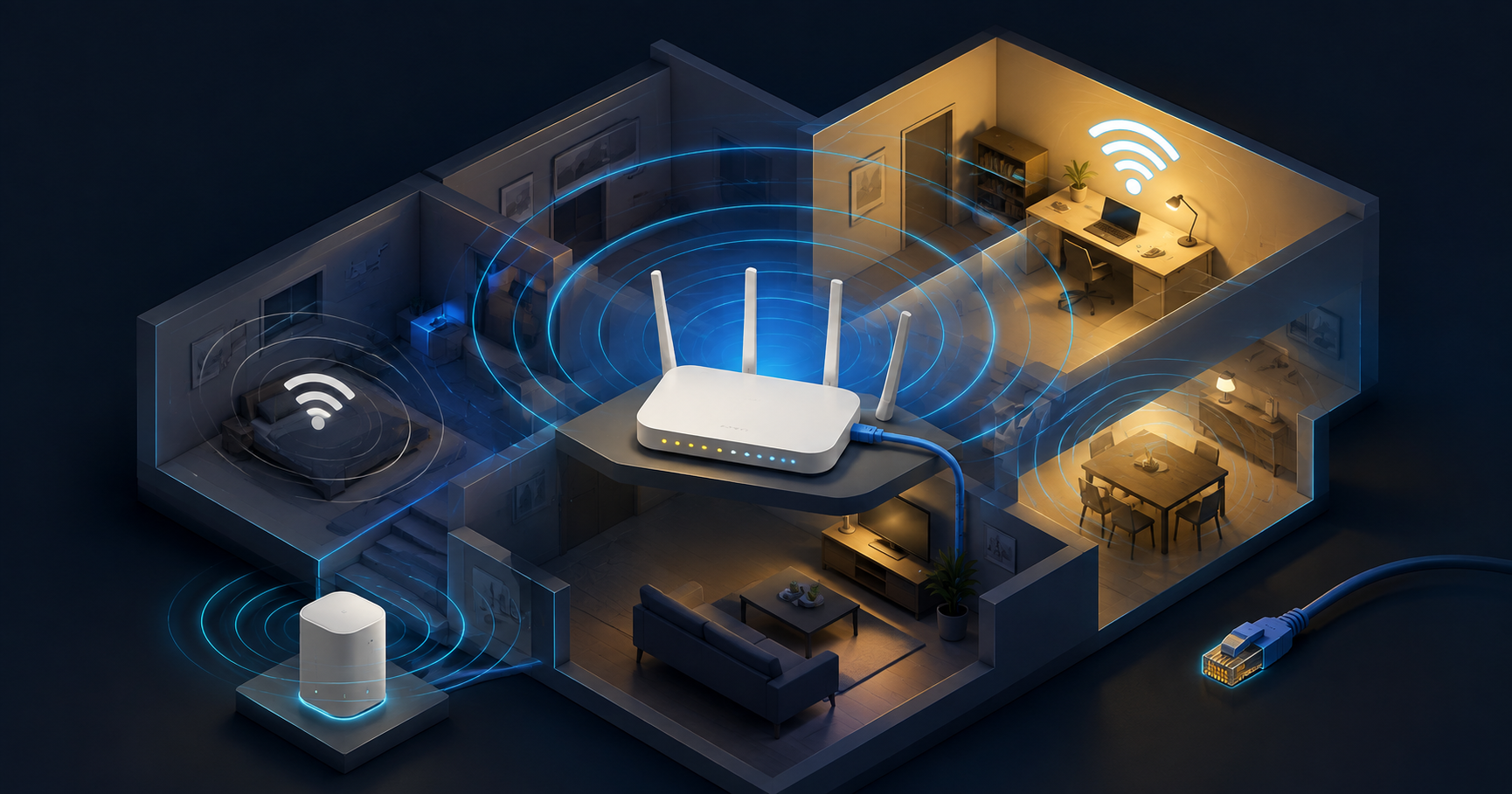
How to Fix Slow WiFi at Home (And What Actually Causes It)
GmoArena participates in affiliate programs including the Amazon Services LLC Associates Program. We may earn a commission from qualifying purchases made through links on this page, at no additional cost to you.
Almost nobody with slow WiFi has a slow internet connection. They have a fine connection and a bad wireless setup between it and their devices.
This is why calling the provider so often changes nothing. The line coming into the house is delivering what you pay for. The problem sits in the ten metres between the router and the phone in your hand, and that part is entirely yours to fix.
Here is what actually causes slow WiFi, in the order worth checking, and what to buy only after the free fixes have failed.
Test the Line Before Blaming the WiFi
Do this first, because everything below is pointless if the connection itself is underperforming.
Plug a laptop directly into the router with an ethernet cable and run a speed test. Then run the same test over WiFi standing in the room where it feels slowest.
If the wired test matches roughly what you pay for and the wireless test does not, the problem is your WiFi and this guide applies. If the wired test is also slow, the problem is the line or the provider, and no amount of new hardware will help.
Run the wired test twice, once in the evening around 8pm and once in the morning. A line that is fast at 9am and slow at 9pm is congested rather than faulty, which is a different conversation with the provider.
What to check: wired speed against your subscribed package, and whether the gap appears only at peak hours.
Where the Router Sits Matters More Than Its Price
Most routers in most homes are in the worst possible position, which is wherever the incoming line happened to enter the building. Usually a corner, often near the floor, frequently inside a cupboard.
WiFi radiates outward in a rough sphere. A router in the corner of the house is sending half its signal into the neighbour’s wall and the street outside. Moving it toward the centre of the home can double usable coverage without spending anything.
Height helps for the same reason. On a shelf at chest height it covers the floor it sits on properly. On the floor behind a sofa it does not.
The things that genuinely kill signal are water and metal. A fish tank, a water tank, a metal cabinet, a mirror, or a concrete wall with dense rebar will each cost you far more signal than distance alone. Microwaves and cordless phones interfere directly with the 2.4GHz band while running.
If the incoming line ends in a bad spot, a long ethernet cable to move the router itself is a far better solution than any extender.
What to check: central placement, elevated position, and clear line of sight away from water tanks, mirrors and metal furniture.
Check ethernet cables on Amazon
Use the Right Band for the Right Device
Modern routers broadcast on two or three bands, and most people never think about which one their devices use. This single misunderstanding causes an enormous amount of slow WiFi.
The 2.4GHz band travels far and passes through walls reasonably well, but it is slow and heavily congested. Every neighbour’s router, every bluetooth device and every microwave shares it.
The 5GHz band is several times faster but has considerably less range and struggles through solid walls.
The practical rule is to put anything that moves or streams on 5GHz when it is in the same room as the router, and leave 2.4GHz for devices that are far away or only need a trickle of data, such as smart plugs and security cameras.
Many routers combine both under one network name and choose for you, which sounds convenient and frequently is not. Devices cling to 2.4GHz long after they should have switched. Splitting the two bands into separately named networks gives you manual control and often fixes the problem outright.
What to check: whether your router has band steering enabled, and whether your slow device is actually connected to 5GHz.
Your Router Is Probably Too Old
The router supplied free by an internet provider is built to a price and is usually several years behind current standards. It was adequate when three devices connected to it. It is not adequate now.
The number that matters is the WiFi standard. WiFi 5 is aging, WiFi 6 is the sensible current baseline, and WiFi 6E adds a third, much emptier band if your devices support it. The improvement from WiFi 6 is less about raw speed and more about handling many devices at once without degrading, which is precisely the problem most homes actually have.
Count the connected devices in your house honestly. Phones, laptops, two or three televisions, a console, smart plugs, cameras, a printer. Twenty devices on a provider-supplied router from five years ago is the most common cause of a network that feels slow despite a healthy line.
What to check: WiFi 6 support, the number of simultaneous devices rated, and whether it can run in access point mode alongside your existing provider box.
Check WiFi 6 routers on Amazon
Mesh Systems Beat Extenders in Almost Every Case
For a house where one router genuinely cannot cover everything, this is the real fix.
A mesh system uses two or three units that cooperate as a single network. Your phone moves between them without dropping the connection or asking you to switch networks, and the units talk to each other on a dedicated channel rather than stealing capacity from your devices.
A traditional extender does something cruder. It receives the signal and rebroadcasts it, which typically halves the available bandwidth and creates a second network name you have to join manually. It solves coverage while making speed worse, which is why extenders disappoint so many people.
For a two or three bedroom home on one floor, a good single router is usually enough. For a multi-storey house, a house with thick concrete walls, or anything over roughly 1,500 square feet, mesh is the correct answer.
What to check: number of units for your square footage, whether it supports a wired backhaul between units, and WiFi 6 support.
Check mesh WiFi systems on Amazon
Wire the Things That Do Not Move
The fastest and cheapest network upgrade available is refusing to use WiFi where you do not need it.
A television, a desktop computer, a games console and a set-top box all sit in one place permanently. Connecting each one by cable removes it from the wireless network entirely, which frees capacity for the devices that genuinely need to be wireless.
The improvement is often dramatic in a busy household, and a cable costs a fraction of a new router.
Where running a cable is impractical, powerline adapters send the connection through the existing electrical wiring. Performance depends heavily on the age and quality of the house wiring, so results vary, but in an older building where drilling is not an option they frequently outperform a wireless extender.
What to check: for powerline adapters, whether both units sit on the same electrical circuit, and avoid plugging them into extension boards.
Check powerline adapters on Amazon
Keep the Router Running Through Outages
In Pakistan this belongs in any honest WiFi guide, because a large share of what feels like slow WiFi is actually the network restarting.
Most routers draw very little power, which means a small UPS keeps the entire connection alive for hours during loadshedding. The benefit is not only staying online. Every unplanned power cut forces the router to reboot and renegotiate the line, which takes minutes and sometimes resyncs at a lower speed than before.
A router that has rebooted eleven times today will perform worse than the same router left running, independent of the connection itself.
What to check: the total wattage of your router and any ONT or modem together, and quoted runtime at that load rather than headline capacity.
Check router UPS units on Amazon
What to Skip
Being honest about what not to buy is as useful as recommendations.
WiFi extenders and repeaters. They halve your bandwidth and create a second network you have to join manually. Spend slightly more on mesh or slightly less on a cable.
WiFi booster antennas sold as upgrades. Replacing a router antenna produces a marginal difference at best and voids the warranty at worst.
Gaming routers with aggressive marketing. The premium buys styling and quality-of-service features that matter mainly on a heavily congested network. Fixing the congestion is cheaper.
WiFi 7 hardware, for now. The standard is real but very few devices in most homes can use it. WiFi 6 is the sensible purchase until your phones and laptops have caught up.
Signal booster apps. Software on a phone cannot change radio physics. These do nothing.
Browse all recommended home networking gear
Buying in Pakistan and India
Check whether your provider allows your own router. Some fibre connections terminate in an ONT that must stay in place. In that case you add your own router in access point mode rather than replacing the provider box, which works perfectly well but changes what you should buy.
Counterfeit networking gear is common. TP-Link and Tenda are among the most frequently faked brands in local markets. A counterfeit router will advertise WiFi 6 and deliver considerably less.
Heat shortens router life significantly. A router in an enclosed cabinet in a room that reaches 40 degrees will fail years earlier and throttle in the meantime. Ventilation is not optional here.
Local pricing on mesh systems varies enormously. Import duties can make an imported three-unit kit cost far more than two good standalone routers configured properly. Price both routes before committing.
Why is my WiFi slow when the internet speed test is fine?
Because a speed test run over WiFi measures the whole chain, while a speed test run on a wired connection measures only the line. If the wired result is good and the wireless result is poor, the connection is delivering what you pay for and the loss is happening in the wireless link, usually due to router placement, band selection, an outdated router, or too many devices competing for the same capacity.
Does restarting the router actually fix slow WiFi?
Sometimes, and it is worth trying first because it costs nothing. Restarting clears the router’s memory, drops stale device connections, and forces it to reselect a wireless channel, which helps if a neighbour’s network has moved onto yours. If restarting fixes it for a day and the problem returns each time, that is a sign of failing hardware or an overloaded router rather than a temporary glitch.
Is a mesh system better than a WiFi extender?
In almost every case, yes. An extender receives and rebroadcasts the signal, which typically halves available bandwidth and creates a separate network you must join manually. A mesh system uses cooperating units on a single network with a dedicated link between them, so devices move around the house without dropping the connection and without the bandwidth penalty. Extenders only make sense as a very cheap fix for one weak corner where speed does not matter much.
How many devices can a home router handle?
A provider-supplied router from several years ago typically struggles past ten to fifteen active devices, while a current WiFi 6 router handles considerably more because the standard was designed specifically for device density rather than headline speed. The number that matters is active devices, not connected ones. Twenty smart plugs sending occasional signals cause far less strain than four people streaming video simultaneously.
The Short Version
Test on a cable first. If the wired speed is fine, the problem is your WiFi and not your provider.
Move the router to the middle of the house and get it off the floor before buying anything. Check that your slow device is actually on the 5GHz band. These two free fixes solve a large share of cases.
If those fail, replace an old provider router with a WiFi 6 model, and use mesh rather than an extender if one unit cannot cover the house. Wire anything that never moves, and put the router on a small UPS if you deal with regular outages.
Slow WiFi is almost always a fixable local problem rather than a line you need to upgrade, and the free fixes are worth exhausting before the paid ones.
For more technology guides and buying advice, visit GmoArena’s Technology section.
Sources and Further Reading
- WiFi Alliance documentation on WiFi 6 and WiFi 6E specifications and device density handling
- Published research on 2.4GHz and 5GHz propagation characteristics and building material attenuation
- Manufacturer specifications for consumer router power consumption and operating temperature ranges
About this article: Written by the GmoArena editorial team covering global celebrity culture, mobile technology, travel destinations, and the stories that matter.