Why Your WiFi Is Slow and How to Actually Fix It
Why Your wifi is slow
Before you call your internet provider, and definitely before you pay for a faster package, run one test. Plug a laptop directly into the router with a cable and check the speed.
If the cabled speed matches what you are paying for, your internet is fine. Your WiFi is the problem, and no amount of extra bandwidth will fix it. You will simply be paying more for the same experience.
This is the situation for most people who think their internet is slow. The connection arriving at the house is adequate. Something between the router and the device is losing it.
Here is how to find out what, and fix it.
First, Establish What You Actually Have
Three numbers matter and most people know none of them.
Your paid speed. Check your bill or your provider’s app. This is the ceiling.
Your cabled speed. Connect a laptop to the router by ethernet cable and run a speed test. This tells you what is actually arriving at the house.
Your WiFi speed. Same test, wireless, standing next to the router. Then again from where you normally sit.
The gaps between those numbers tell you where the problem lives.
If cabled speed is far below paid speed, the problem is your provider or the line into the building. Call them.
If cabled speed is fine but WiFi next to the router is poor, the problem is the router itself or its configuration.
If WiFi is fine next to the router but poor where you sit, the problem is placement, distance, or interference.
That single test narrows the entire diagnosis in five minutes.
Router Placement: The Fix Nobody Does
Most routers in Pakistani and Indian homes sit exactly where the incoming line enters, usually a corner of one room, often on the floor, frequently inside a cabinet or behind a television.
Every one of those choices costs you speed.
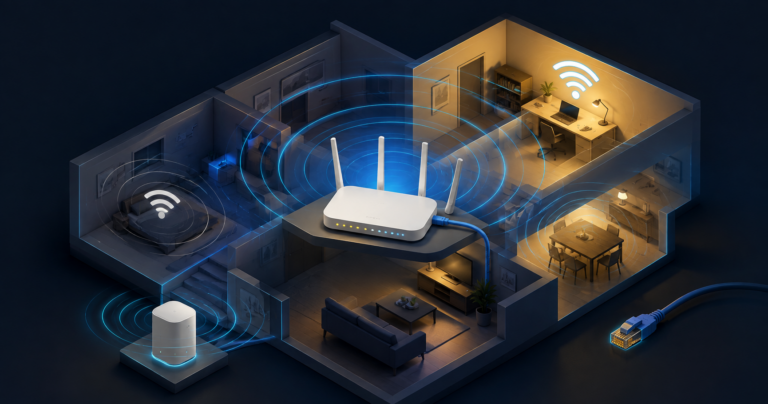
WiFi signal radiates outward and downward from the router. A router in a corner sends half its signal into the wall and out of the building. A router on the floor sends signal into the floor. A router inside a wooden cabinet loses meaningful strength before the signal even leaves the furniture.
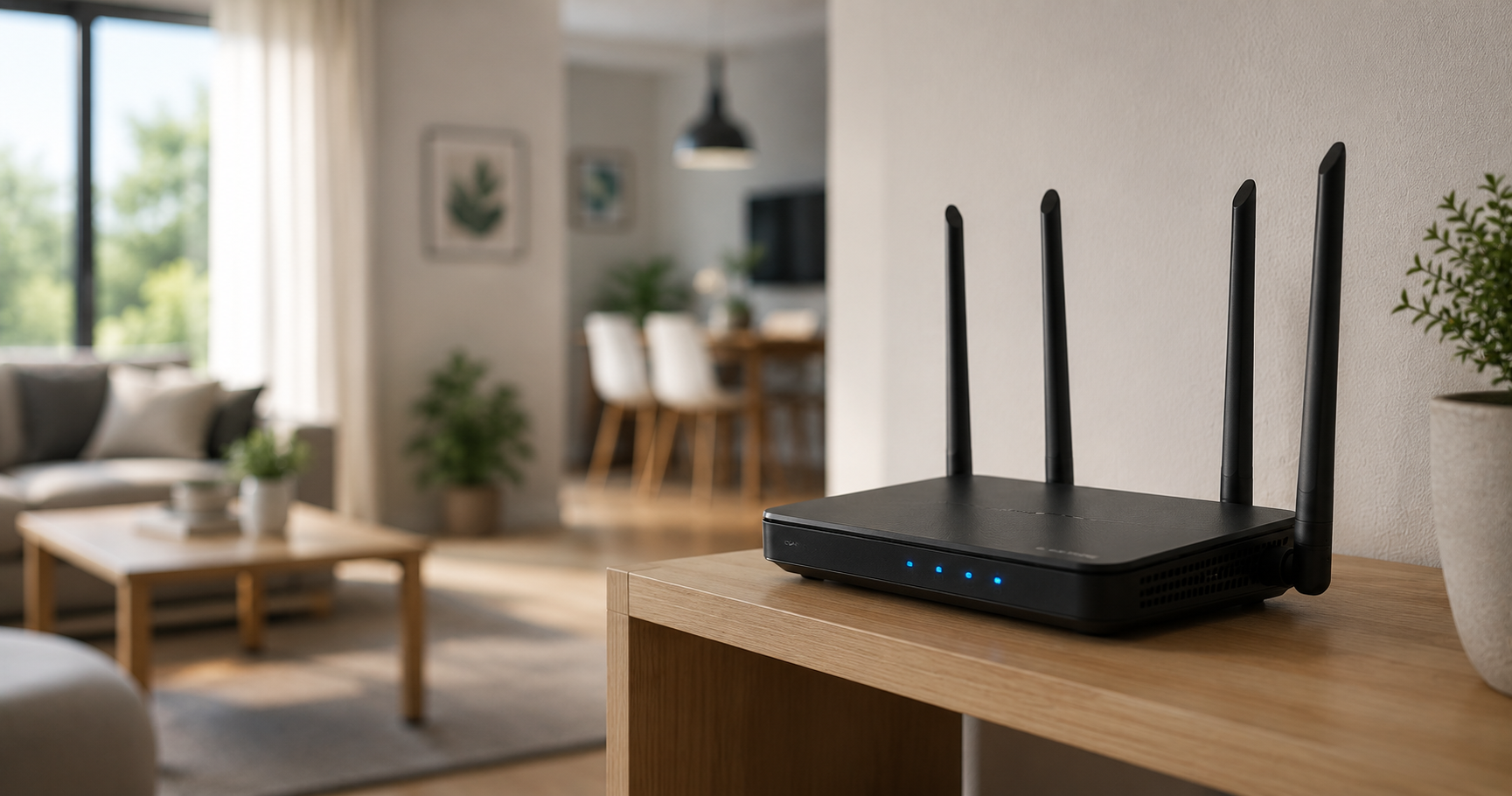
Move it central. As close to the middle of the home as the cabling allows. If the incoming line is fixed to one corner, a longer ethernet cable from that point to a better router location is one of the cheapest upgrades available.
Move it up. Router on a shelf at roughly chest height performs measurably better than a router on the floor.
Move it out. Out of cabinets, away from the back of televisions, off the top of metal appliances. Metal blocks WiFi effectively.
Keep it away from microwaves. Microwave ovens operate at 2.4GHz, which is the same frequency band as one of your WiFi channels. A running microwave will disrupt 2.4GHz WiFi in the same room.
Keep it away from cordless phones, baby monitors, and Bluetooth speakers. All of these share the 2.4GHz space. To read more technology guides, visit GmoArena’s Technology section.
The 2.4GHz and 5GHz Decision
Almost every modern router broadcasts two networks, and understanding the difference solves a large share of WiFi complaints.
The 2.4GHz band travels further and passes through walls better, but is slower and far more congested because every other router and device in your building uses it.
The 5GHz band is considerably faster and much less congested, but travels a shorter distance and is weakened more by walls.
The practical rule. Devices in the same room or one room away from the router should use 5GHz. Devices further away, or separated by multiple thick walls, should use 2.4GHz.
The problem is that many routers broadcast both under a single network name, and your phone or laptop chooses on its own. Devices frequently stay connected to 2.4GHz long after they have moved close to the router, because they hold the existing connection rather than switch.
The fix is to give the two bands separate names in your router settings, for example HomeWiFi and HomeWiFi_5G. Then connect deliberately. Your phone in the living room joins the 5G network. The smart TV two rooms away joins the standard one.
This single change frequently produces a larger improvement than anything else on this list.
Channel Congestion in Apartment Buildings
If you live in a flat or a densely built neighbourhood, this is likely your biggest problem and you almost certainly have not addressed it.
WiFi operates on channels. When multiple routers nearby use the same channel, they interfere with each other and everyone gets slower.
In an apartment building, twenty routers may be competing across a handful of channels, most of them left on whatever the manufacturer set by default. Default settings mean everyone lands on the same few channels.
The fix. Install a WiFi analyser app on an Android phone, which will show every nearby network and the channel it uses. Find the least crowded channel. Then log into your router settings and set your 2.4GHz network to that channel manually instead of leaving it on automatic.
For 2.4GHz specifically, only channels 1, 6, and 11 do not overlap with each other. Choosing channel 4 or 8 means overlapping with two others. Pick whichever of 1, 6, or 11 has the fewest neighbours on it.
The 5GHz band has many more channels and far less congestion, which is another reason to move nearby devices onto it.
Router Firmware and Age
Two things worth checking that people rarely do.
Log into your router’s admin panel, usually by typing 192.168.0.1 or 192.168.1.1 into a browser, and look for a firmware update option. Manufacturers release updates that fix performance and security issues, and most routers never receive them because nobody checks.
Then consider the router’s age. A router more than five years old likely supports only older WiFi standards. If it predates WiFi 5, sometimes labelled 802.11ac, it is a genuine bottleneck regardless of your internet package. Replacing it will improve speeds more than upgrading your internet plan.
For most homes, a mid-range WiFi 5 or WiFi 6 router is a better purchase than a faster internet package, and it is a one-time cost rather than a monthly one.
The Devices on Your Network
Log into the router admin panel and look at connected devices. Most people find more than they expected.
Old phones still connected. A neighbour who was given the password two years ago. Smart devices nobody uses. Each one consumes a share of capacity even when idle.
Change the WiFi password and reconnect only what you actually use. This is a five-minute task with immediate effect in shared households.
While in there, confirm the security setting is WPA2 or WPA3. Anything older is both slow and insecure.
When the Problem Is One Room
If speed is fine near the router but poor in a bedroom or upstairs, the issue is coverage rather than the router.
Powerline adapters use your home’s electrical wiring to carry the network signal to a distant room, where a second unit provides a connection. These work well in buildings with modern wiring and poorly in older buildings.
Mesh systems replace your router with multiple units placed around the home that hand devices between them seamlessly. This is the best solution for larger homes and the most expensive.
WiFi extenders are the cheapest option and the most disappointing. They typically halve the bandwidth they pass along, so a device connected through an extender gets a strong signal carrying slower speeds. They are useful only for light use in a dead zone.
For most homes, moving the router centrally solves what an extender would have partially masked.
A Note on Loadshedding
For readers in Pakistan, one practical addition. A router restarting every time power returns takes one to three minutes to fully reconnect, and some ISP connections take longer to re-authenticate.
A small UPS for the router and modem, costing a fraction of a whole-home solution, keeps the internet running through outages if you have a laptop or phone battery to use it with. For anyone working from home or freelancing, this is one of the highest-value small purchases available.
The Order to Do All This
Test cabled speed against paid speed. If cabled is slow, the problem is your provider.
Move the router central, elevated, and out of enclosures.
Separate the 2.4GHz and 5GHz network names and connect devices deliberately.
Check channel congestion with an analyser app and set channel 1, 6, or 11 manually.
Update firmware and check router age.
Audit connected devices and change the password.
Only then consider extenders, mesh, or a faster package.
Most people who work through the first four steps stop needing the rest.
Why is my WiFi slow even though I pay for fast internet?
Because internet speed and WiFi speed are different things. The speed you pay for arrives at your router by cable. What reaches your device depends on router placement, the frequency band your device is using, channel congestion from nearby networks, the router’s age, and how many devices share the connection. Test by connecting a laptop to the router with an ethernet cable and running a speed test. If the cabled speed matches your package, your internet is fine and the problem is entirely within your WiFi setup.
Should I use 2.4GHz or 5GHz WiFi?
Use 5GHz for devices in the same room or one room from the router, since it is significantly faster and far less congested. Use 2.4GHz for devices further away or separated by multiple walls, since it travels further and penetrates walls better despite being slower. If your router broadcasts both bands under one network name, devices often stay stuck on 2.4GHz even when close to the router. Giving the two bands separate names in your router settings and connecting deliberately usually produces a noticeable improvement.
Do WiFi extenders actually work?
Extenders work but with a significant cost. Most typically halve the bandwidth they pass through, so a device connected via an extender receives a strong signal carrying slower speeds than the router provides directly. They are worth using only for light browsing in a genuine dead zone. For most homes, moving the router to a central elevated position solves the coverage problem more effectively and costs nothing. For larger homes, a mesh system performs far better than an extender, though at higher cost.
The Short Version
Test the cable first, because if your cabled speed is fine then buying faster internet changes nothing.
Move the router into the middle of the home, up off the floor, out of any cabinet.
Split the 2.4GHz and 5GHz networks and put nearby devices on 5GHz.
Set your 2.4GHz channel manually to 1, 6, or 11, whichever your neighbours are not using.
Those four steps cost nothing, take under an hour, and fix the majority of slow WiFi complaints. Everything else is worth trying only once those are done.
For more technology guides and practical coverage, visit GmoArena’s Technology section.
Sources and Further Reading
- WiFi Alliance technical documentation on 2.4GHz and 5GHz band characteristics
- IEEE 802.11 standards documentation on channel allocation and overlap
- Router manufacturer configuration guides for TP-Link, Tenda and PTCL supplied units
About this article: Written by the GmoArena editorial team covering global celebrity culture, mobile technology, travel destinations, and the stories that matter.